
To operate lights with your K4Community Alexa device, make sure you're using any of these supported commands:
- Alexa/Echo, turn on/off [room] light
- Alexa/Echo, set [room] light to [x%] (for dimmers only)
- Alexa/Echo, dim [room] light to [x%] (for dimmers only)
If you're noticing that Alexa is not operating your smart home devices or is experiencing a significant delay:
-
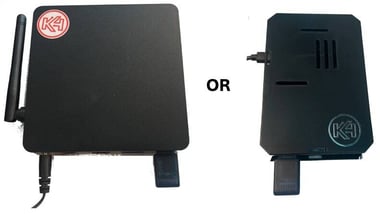 Reboot your Alexa device by unplugging and plugging it back in
- Locate and reboot your K4 Smart Home Controller (pictured here) by unplugging and plugging it back in. If you're not sure where your controller is located, someone on the community maintenance staff should be able to help.
- Make sure Alexa has discovered devices for your room. Ask "Alexa, discover devices."
If you're still having trouble after these steps, contact K4Connect Support and we'll be happy to assist you.
Need help? Our friendly Support Team is here to assist you.
💬 Chat
Click the Chat icon in the bottom-right corner of your screen to start a conversation with a support representative.
📱 Phone & SMS*
Call or text us at (855) 876-9673.
Send us an email at support@k4connect.com, and we'll get back to you as soon as possible.
If you're unsure which contact method to use, chat is usually the fastest way to get assistance.
*K4Connect provides customer-initiated text message support. By texting K4Connect Support, you consent to receive text messages from K4Connect related to your support request, including responses and follow-up messages. Opting in is not a condition for purchase or service.
K4Connect does not send unsolicited or promotional text messages. Message frequency varies based on your support needs. Message and data rates may apply. Reply STOP at any time to opt out of support text messages.
Comments
0 comments
Please sign in to leave a comment.