
Adding Menu Items
Overview:
This section outlines how to create a menu for an existing restaurant in Team Hub.
Instructions:
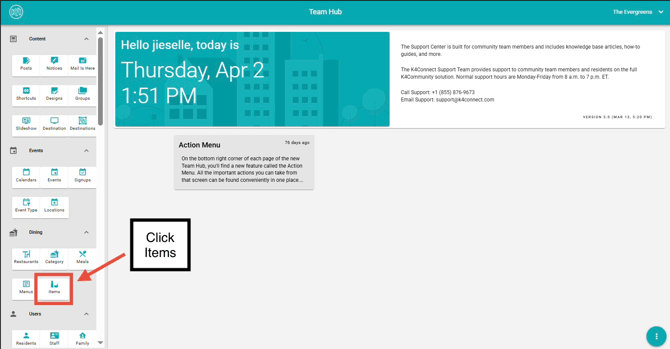
- Navigate to the Dining section in Team Hub.
- Click Items.
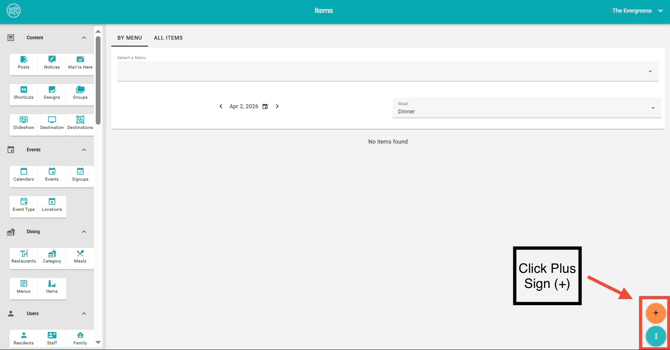
3. Hover over the lower section of the page and click the Plus (+) icon.
4. Enter the item name.
* Optional: Enter a description.
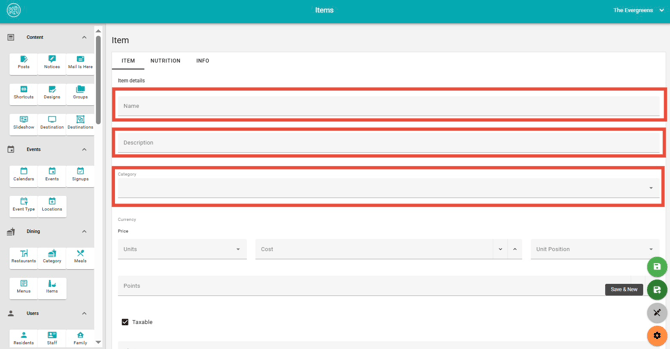
5. Select Category
6. Scroll down to add a meal period (e.g., Breakfast, Lunch, Dinner):
-
- Click + Add Item
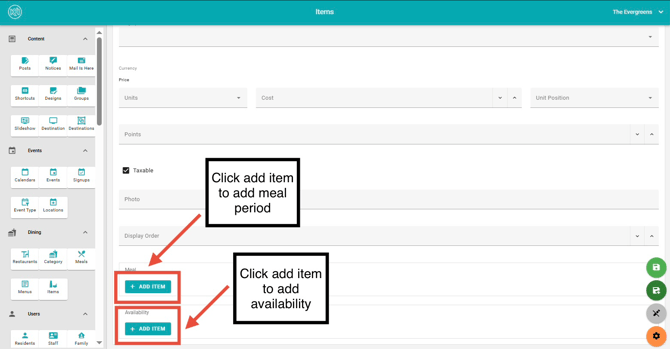
7. Scroll further to configure availability:
-
- Click + Add Item
- Select the start and end time
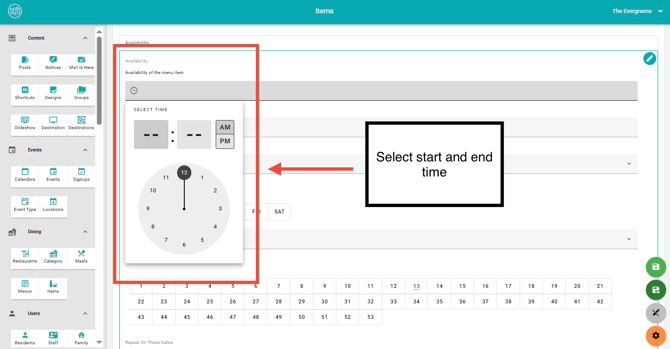
8. Choose the days the item will be available
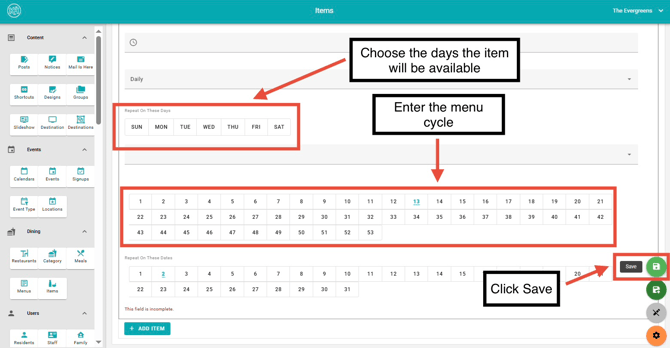
Check out How to Schedule Menus for more tips on daily, weekly, and monthly recurring menu cycles.
Editing Menu Items
Overview:
This section explains how to update existing menu items in Team Hub.
Instructions:
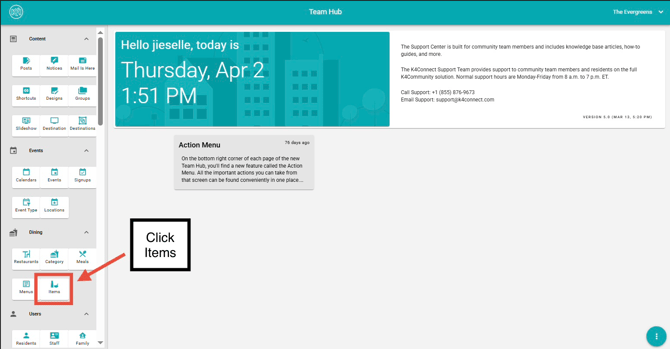
- Navigate to the Dining section in Team Hub.
- Click Items.
3. Select All Items from the top of the page.
4. Search for the menu item you wish to edit.
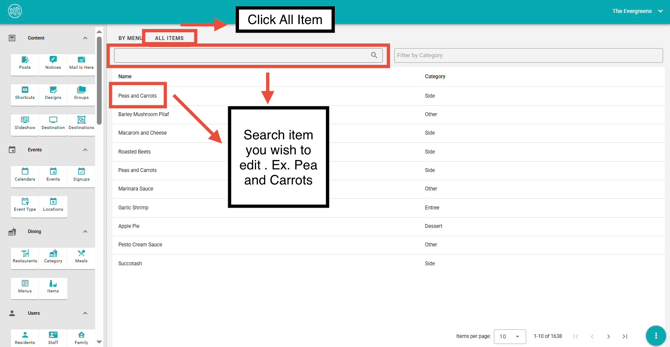
5. Click on the item name to open its details.
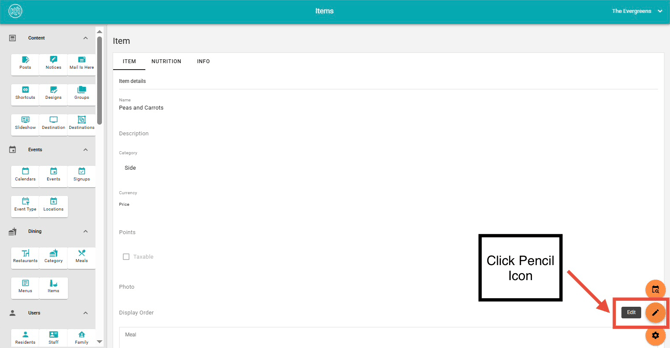
6. Click the Pencil icon.
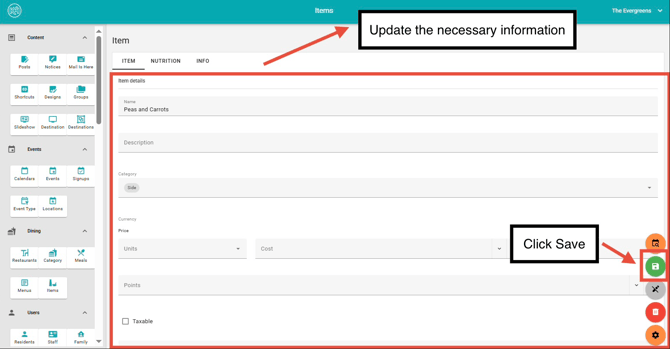
7. Update the necessary information.
8. Click Save to apply your changes.
* Important:
- Ensure all information is accurate before saving updates.
Add an Item to the Menu
Once your item availability is set, attach it to your preferred Menu.
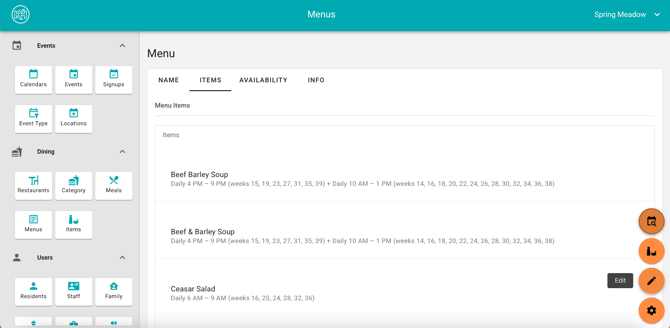
1. In Menu: Go to Items, and select Edit.
2. Select Add Item and the type-search menu will display the item & availability assigned.
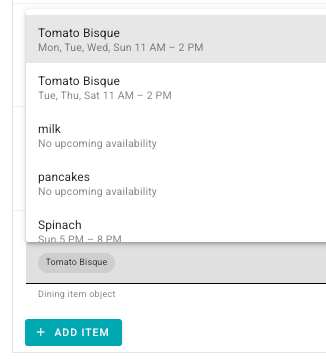
3. Click on the item of your choice & hit Save.
Confirm Visibility in the App
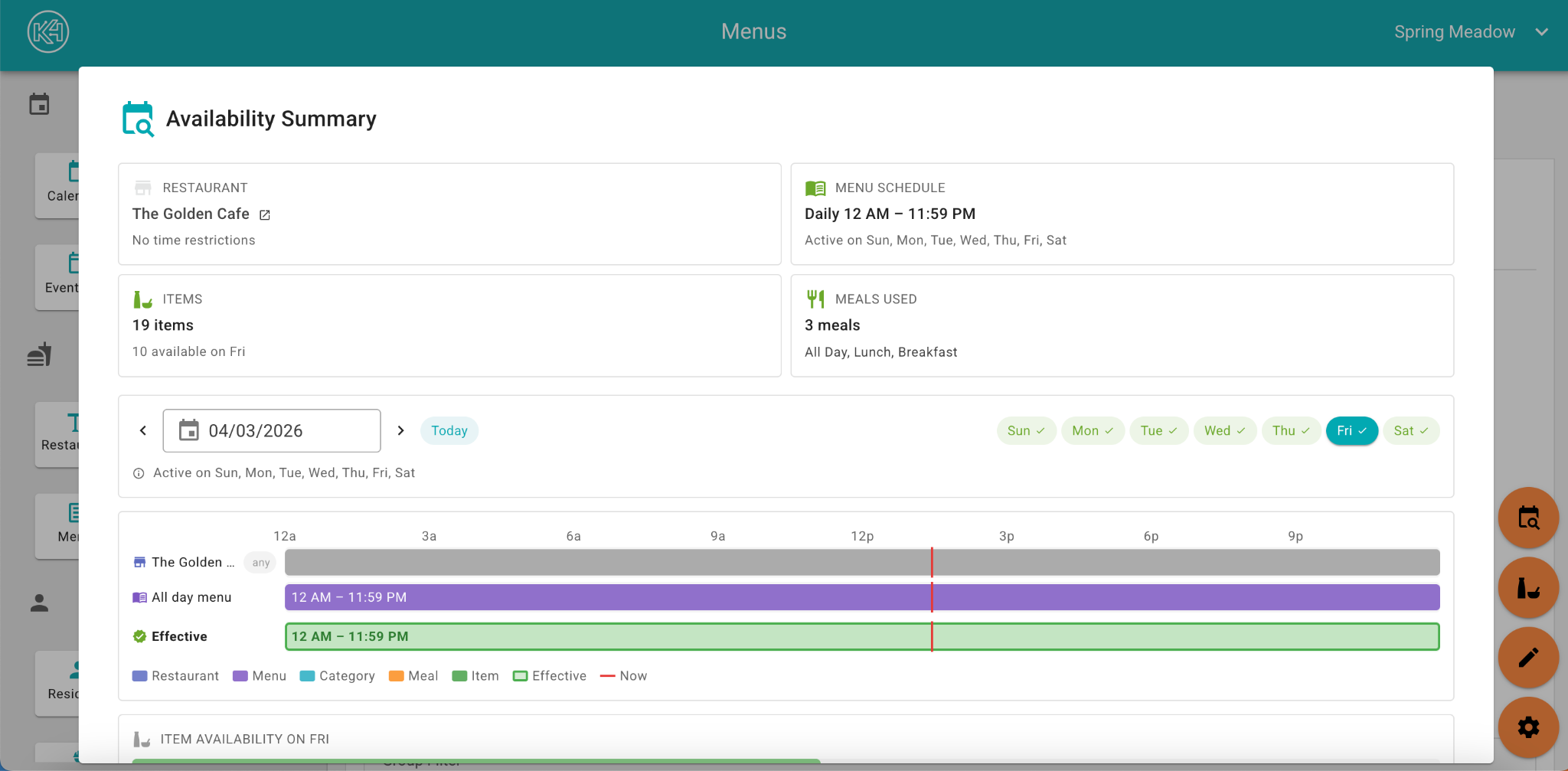
After Adding menu items, check the Availability Coach to assure the item will present as you expect in the menu.
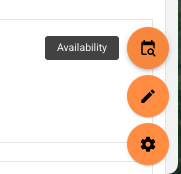
1. Select Availability
2. Assure the Effective is GREEN and view any coaching at the top of the screen.
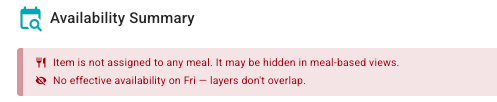
* Red content at the top provides coaching if the item needs a category or meal assigned to appear, or if the item availability needs to be updated for the restaurant or menu.
For more dining information, please view our How-To video below.
Team Hub 5.0: Dining Section Overview
This how-to video provides a full overview of the Dining section in TeamHub and explains how each of the five dining cards works together. You’ll learn the purpose of Restaurants, Categories, Meals, Menus, and Items, and how each component supports menu creation, scheduling, and resident-facing dining experiences.
To view Team Hub 5.0 FAQ, follow this link: https://support.k4connect.com/teamhub5.0-frequently-asked-questions