
Create a New Staff User
Staff users can be created in Team Hub by going to Users > Staff
- Click the Plus sign at the lower right.
- Fill in the user's details.
- EMAIL is a required field.
- CONTACT: Phone is options & recommended for Directory visibility.
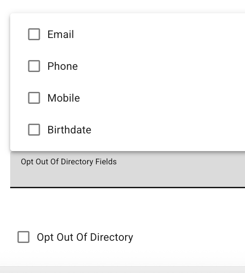
- DIRECTORY: Select whether a profile will be visible & which fields at the bottom of the Directory tab. (used to be a separate article)
-
ROLES: Select Staff. Add these 7 roles to each profile for default Teamhub 5.0 write permissions to each module. Learn more about Roles & Permissions categories.
-
Activities Director
-
Check-in
-
Editor
-
Executive Director
-
Maintenance
-
Nurse Manager
-
Resident Services Director
-
-
TYPE: Title and Department are optional & recommended for Directory visibility.
3. Click the Save icon at the lower right.
Log In for the First Time
The new user will receive and email to the address provided with steps to create a password for the Team Hub.
From here, you can also edit the staff user's details, give them access to a read-only version of K4Community Plus and send a Reset Password email.
If a staff user does NOT receive an email, an admin or K4Advocate can provide an app code to assist with login to K4Community.com.
Remove a Staff User
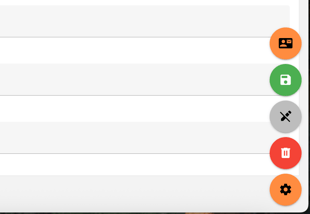
To remove a staff user's profile, click the edit button at the lower right of the staff member's profile and select the Delete icon.
For more information, view the Team Hub 5.0 FAQ:
https://support.k4connect.com/teamhub5.0-frequently-asked-questions