
How do I clear my browser's cookies and cached files?
Clearing cookies and cached data helps improve your browser’s performance and resolve website issues. Over time, cookies and cached files can become outdated or corrupted, causing pages to load incorrectly or display old content. Removing them ensures you see the most recent version of a site and can help fix login errors or slow browsing speeds
What Is Browser Cache?
Your browser cache stores temporary files such as images, scripts, and web pages. These files help websites load faster the next time you visit. However, over time the cache can become large or outdated, leading to display or performance problems. Clearing the cache removes these temporary files — it does not delete your passwords or bookmarks.
What are Website Cookies?
Website cookies are small text files that websites store on your device to remember information about your visit. They help sites recognize you when you return, keeping you logged in, saving your preferences, and personalizing your experience. For example, cookies can remember items in your shopping cart or your chosen language. Deleting your cookies will usually result in websites that require login to not remember your previous login and will require that you enter your login credentials again.
 Google Chrome
Desktop (Windows/Mac)
Open Google Chrome.
Click the three dots in the top-right corner.
Go to More tools → Clear browsing data.
Choose a time range (e.g., Last hour or All time).
Check the box for Cached images and files. and Cookies and other site data
Click Clear data.
Shortcut:
Press Ctrl + Shift + Delete (Windows) or Command + Shift + Delete (Mac) to open the dialog directly.
Mobile (Android/iOS)
Open the Chrome app.
Tap the three dots → History → Clear browsing data.
Choose a time range.
Check Cached images and files and Cookies).
Tap Clear data.
 Mozilla Firefox
Desktop
Open Firefox.
Click the menu button (three horizontal lines) → Settings.
Select Privacy & Security.
Under Cookies and Site Data, click Clear Data….
Check Cached Web Content and Cookies and Site Data.
Click Clear.
Shortcut:
Press Ctrl + Shift + Delete (Windows) or Command + Shift + Delete (Mac).
Mobile (Android/iOS)
Open the Firefox app.
Tap the menu icon → Settings.
Tap Delete browsing data.
Select Cache and Cookies.
Tap Delete browsing data.
 Microsoft Edge
Desktop
Open Edge.
Click the three dots → Settings.
Select Privacy, search, and services.
Under Clear browsing data, click Choose what to clear.
Select a time range.
Check Cached images and files and Cookies.
Click Clear now.
Mobile
Open the Edge app.
Tap the menu (three dots) → Settings → Privacy and security → Clear browsing data.
Choose what to clear, including Cache and Cookies.
Tap Clear.
 Safari
Mac
Open Safari.
Click Clear History.
Choose the time range. We recommend at least Today and Yesterday
Click Clear History.
iPhone/iPad
Open Settings.
Scroll down and tap Safari.
Tap Clear History and Website Data.
Confirm by tapping Clear History and Data.
 Opera
Desktop only
Open Opera.
Click the O menu (top left) → Settings.
Select Privacy & Security.
Under Clear browsing data, choose the time range.
Check Cached images and files and Cookies.
Click Clear data.
Why is my app logged in under my spouse's account?
Sometimes residents who share an Apple ID account will notice that their K4Community Plus app will suddenly be logged in under their spouse's profile.
This is due to an Apple feature called Keychain which shares login credentials across Apple devices that are logged in under the same Apple ID. This is meant to be a convenience, but for couples who share an Apple ID, it turns out to be a nuisance and K4Connect doesn't have any way to prevent it.
The only way to resolve this is to either log into your individual devices under unique Apple IDs, or turn off the Keychain feature on one or both of the devices.
How can I get a replacement Alexa?
Why do I need an activation code to log in to K4Community Plus?
K4Community Plus requires identity verification to allow login. Only residents who are in the K4Community directory and family members connected to those residents can log into K4Community Plus.
The activation code is a secure 6-digit code that is valid for 24 hours or until it's used. This code ensures that no one other than residents at K4Community locations and their families are accessing K4Community Plus.
How do I know what version of K4Community Plus I have?
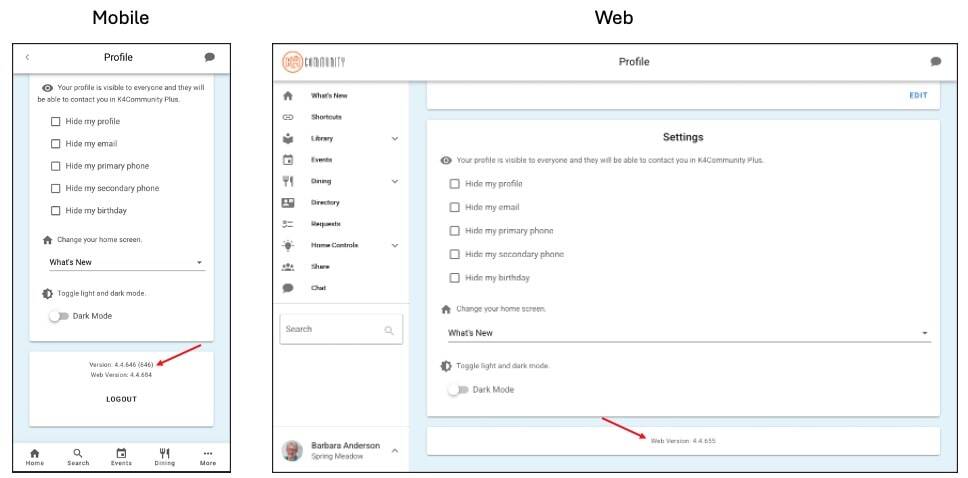
If you're having any problems with the K4Community Plus app, our Support team may ask you for the app version.
To find the K4Community Plus app version:
-
Go to your profile page.
- On web, click the profile in the bottom left corner and select Profile
- On mobile, click the profile in the top left corner
- Scroll down to the bottom of the Profile page
Where is the device serial number (DSN) on my Alexa?
The device serial number (DSN) can be found on the bottom of the device. It is a 16 digit alpha-numeric string. Ex. G09OUS09N0510LM5
The number is fairly small. Try taking a photo and zooming in to see it better.
Will my smart home scenes follow me if I move to another location in the community?
No. Any smart home scenes created in the K4Community Plus app are tied to the room itself and will not follow the you if you move to a new room. If a new resident moves into an apartment where a previous resident has created scenes, the new resident may see the scenes from the previous resident in their K4Community Plus app and will have the ability to edit/delete them if they want. K4Connect Support can also help edit or delete scenes if needed.
Why do I need to log back in to K4Community Plus?
If you've found that upon returning to the app, you're prompted to log in again but you didn't log out, it may be for one of the following reasons:
Web
- You cleared your browser's cached images and files. Clearing your browser's cached images and files results in your browser "forgetting" your login status for K4Community as well as other sites.
- You're using a new or different browser. If you logged into K4Community Plus on a Chrome browser and you switch to a different browser like Firefox or Safari, you will need to log into the app on the new browser. Your login session is "remembered" by any given browser but is not shared across different browsers.
- You've logged out using the logout button on the profile page.
Mobile
- You've deleted the app from your phone or tablet and re-downloaded it. Deleting the app from your device erases your login credentials for the app.
- You've replaced your phone or tablet and downloaded the app onto the new device. If you get a new device and add the app to it, that device has no memory of you logging in on another device.
- You've logged out using the logout button on the profile page.
What do the lights on my Alexa mean?
In many cases, just ask, "Alexa/Echo what does your light mean?"
Yellow

A slow yellow burst, every few seconds, means that Alexa has a message or notification, or there's a reminder you missed. Say, "What are my notifications?" or "What are my messages?"
Cyan on blue
 A cyan spotlight on a blue ring means that Alexa is listening.
The light ring glimmers briefly when Alexa has heard and is processing your request. A briefly glimmering blue light might also mean the device is receiving a software update.
Red
 Solid red light shows when the microphone on/off button is pressed. That means the device microphone is disconnected and Alexa is not listening. Press it again to enable your microphone.
On Echo devices with a camera, a red light bar means that your video will not be shared.
Spinning cyan
 Slowly spinning teal and blue means that your device is starting up. If the device has not been set up, the light turns to orange when the device is ready for setup.
Note: The device may restart due to a software update. In that case, slowly spinning teal and blue means that your device is restarting after the update is complete.
Orange
 Your device is in setup mode, or is trying to connect to the Internet. If your K4Community enterprise device is showing an orange circle, please contact Support.
Green
 A pulsing green light means that you're receiving a call on the device.
If the green light is spinning, then your device is on an active call or an active Drop In.
White
 When you adjust device volume, white lights show the volume levels.
A spinning white light means Alexa Guard is turned on and in Away mode. Return Alexa to Home mode in the Alexa app.
How do I manage my profile information?
You can access your profile in the K4Community Plus app by clicking on your profile picture. It's a bit different between the mobile app and web app from there.
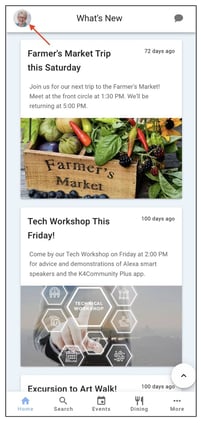
Mobile
To access your profile just tap on the profile picture in the top left corner. From there you can scroll to see all of your information and settings.
Web
To access the profile on the web app, click on your profile picture icon in the bottom left corner and then click on Profile
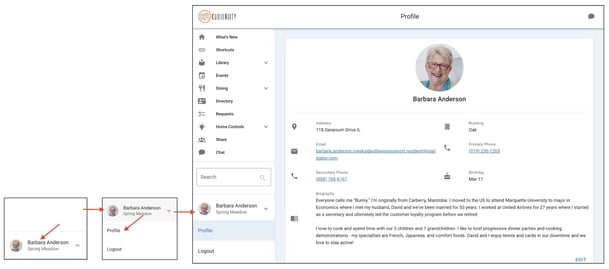
Once you're on your profile page, you can manage preferences such as setting a custom home screen, writing a biography to share a little about yourself, or toggling between light and dark mode.
Community staff have control over profile pictures that appear in the K4Community Plus app. To change your profile picture please reach out to your local community staff team.
Comments
0 comments
Please sign in to leave a comment.