
To reset your K4Community Plus password:
- Go to the login page and enter your email
- Click Get Started
- On the next page click Forgot Password
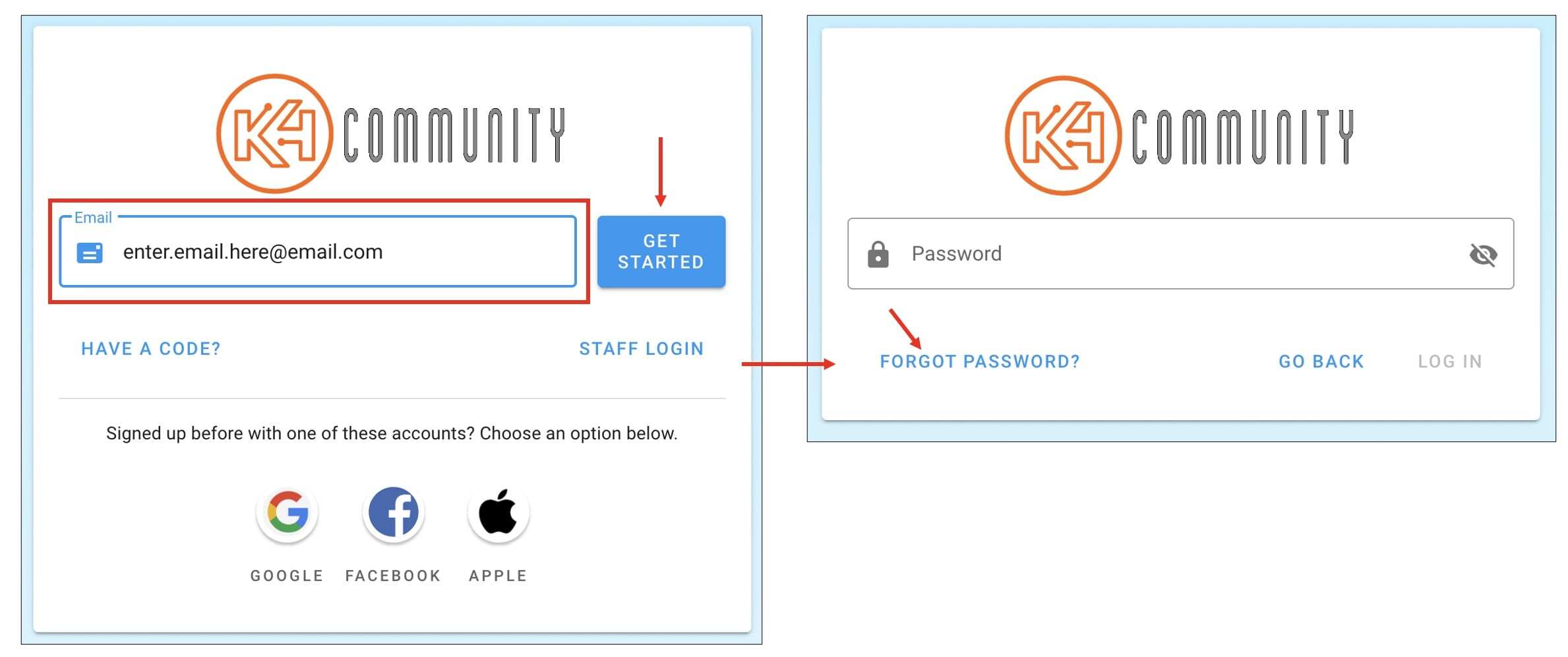
An email containing a link to reset your password will be sent to the email address you entered.
Check your spam or junk folder if the email doesn't come through right away. Automated emails like this sometimes get flagged as spam.
If the email you entered is not recognized, you may have either used a different email to log in originally, or you may have used one of the social logins (Google, Facebook, or Apple). In this case try a different email or one of the social logins.
 Once the email is received:
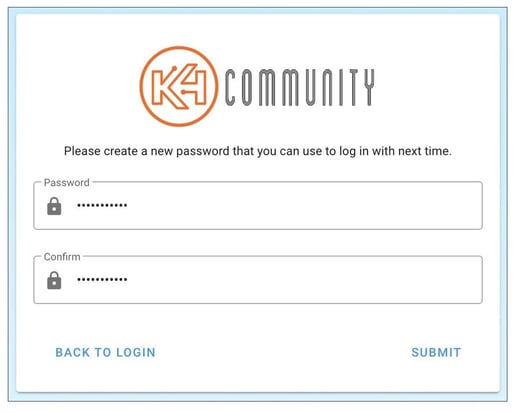
- Click the link in the email to open the password reset page
- Enter your new password in the Password field
- Passwords must be at least 6 characters in length
- Enter the new password again exactly the same (spelling and casing) in the Confirm field
- Click Submit
If your passwords match, you'll be logged into the app. If they don't you'll get an error indicating to enter the same password and confirmation.
Comments
0 comments
Please sign in to leave a comment.