
Alexa devices enabled with K4Community Voice provide you access to community information and Smart Home features simply by using your voice. You don't need to remember complicated commands. Simply say “Alexa” or "Echo" to get started, then tell Alexa what you would like to do.
Plug and Play
K4 Alexas are designed to be plug-and-play. They're already programmed for your community and your specific residence. Once the device is plugged in and booted up (the blue light stops cycling) you're free to give commands as needed.
Wake Word
The wake word is the word you say to get Alexa’s attention and activates the device. For example, saying “Alexa” or "Echo" wakes the device and lets it know you’re ready to give a voice command.
K4 Alexas can have either Alexa or Echo as the wake word. This is set at the community level.
Echo Dot

The Echo Dot is a small, round speaker that responds to your voice. It does not have a screen, so you interact with it primarily by speaking to Alexa. You can also use the buttons on the device. Here's what they do:
Action button: This is the one with a dot. Press this button to get Alexa's attention without saying the wake word.
Microphone button: This is the circle with a slash through it. Press this button to turn the microphone off or on. When the microphone is off the microphone button and the ring light will turn solid red and Alexa cannot hear you.
Volume buttons: These are the plus (+) and minus (-) buttons. Use these increase or decrease the volume of the device. You can also adjust the volume by asking Alexa to "turn volume up/down" or "set volume to 1 thru 10")
Light ring: The light around the edge of the Echo Dot provides information about what the device is doing. For example, it may light up when Alexa is listening or when the microphone has been turned off. View the Resident FAQs for more about what the various colors mean.
The device also has ports in the rear for power and audio out.
Echo Show
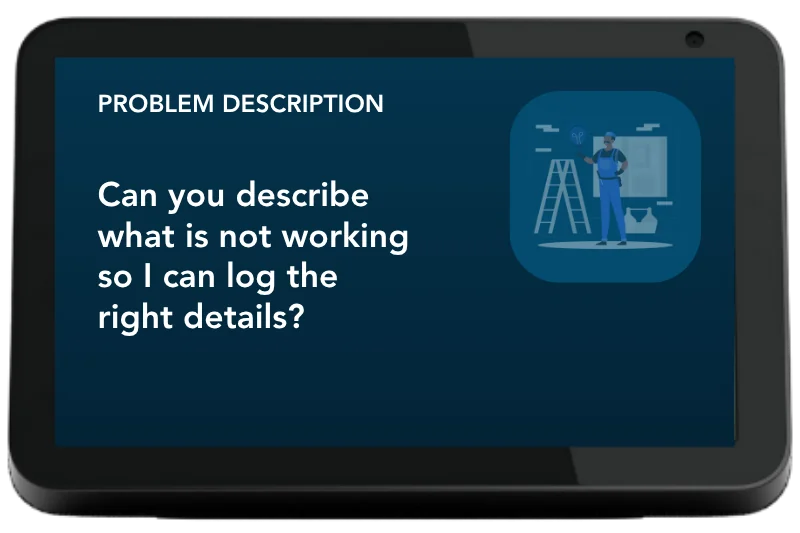 The Echo Show works like an Echo Dot but adds the functionality of a touchscreen. You can speak to Alexa or use the screen to select options and view information.
Similar to the Echo Dot, the show has buttons. Here's what they do:
Microphone button: This is the circle with a slash through it. Press this button to turn the microphone off or on. When the microphone is off the microphone button and the light bar at the bottom of the screen will turn solid red and Alexa cannot hear you.
Volume buttons: These are the plus (+) and minus (-) buttons. Use these increase or decrease the volume of the device. You can also adjust the volume by asking Alexa to "turn volume up/down" or "set volume to [between 1-10]")
Light bar: The light bar at the bottom of the Echo Show provides information about what the device is doing. For example, it may light up when Alexa is listening or when the microphone has been turned off. View the Resident FAQs for more about what the various colors mean.
The device also has ports in the rear for power and audio out.
How to Talk to Alexa
To ask Alexa to do something:
- Say the wake word. Either "Alexa" or "Echo" depending on your community's settings.
- Wait for Alexa to respond or for the device to indicate that it is listening.
- Say what you would like Alexa to do.
- Wait for Alexa to respond.
For example:
“Alexa, what is the weather today?”
“Alexa, turn on the lights.”
“Alexa, what time is it?”
If Alexa Doesn't Hear You
If Alexa does not respond:
- Make sure the device is plugged in and turned on.
- Make sure the microphone has not been turned off.
- Move closer to the Echo device and try again.
- Say the wake word clearly before your request.
- If you are using an Echo Show, check the screen for any messages or notifications.
Using the Volume Controls
You can change the volume without speaking to Alexa.
- Press + to make the sound louder.
- Press – to make the sound quieter.
You can also say “Alexa, volume up/down.” or "Alexa, set volume to [between 1-10]"
Using the Echo Show Touchscreen
The Echo Show allows you to interact with Alexa using both your voice and the touchscreen. The device supports tap and swipe gestures. It does not allow pinch-to-zoom.
Go Back or Go Home
If you open something and want to return to the previous screen, look for a Back button or swipe left to right. To go directly back to the Home page swipe down from the top of the screen and select the Home icon or say "Alexa, go home."
A Few Helpful Tips
Speak naturally. You do not need to use special words or speak loudly.
Give Alexa one request at a time. This can make it easier for Alexa to understand what you want.
Wait for Alexa to respond. Give the device a moment to process your request.
Try asking again. If Alexa misunderstands you, simply repeat your request or say it another way.
Keep the device relatively close. Alexa works best when the device can clearly hear you.
Need Help?
If your Echo device is not responding, is having trouble connecting, or is not performing a K4Community command correctly, contact our support team for assistance.
Comments
0 comments
Please sign in to leave a comment.